> For the complete documentation index, see [llms.txt](https://nomadia-docs.gitbook.io/products/llms.txt). Markdown versions of documentation pages are available by appending `.md` to page URLs; this page is available as [Markdown](https://nomadia-docs.gitbook.io/products/operations-and-route-management/optimize-your-deliveries.md).
# Optimize your Deliveries
## 1. Introduction
The **Optimize your Deliveries** feature streamlines your operations by calculating the best possible delivery sequence and routes. Using this guide, you will learn how to set your optimization preferences and successfully start the route planning process.
***
## 2. Initial Configuration
To begin using the optimization feature, it is assumed that you have already imported your delivery data into the system.
Before you can start optimizing, you must navigate to the starting point of the process.
1. Navigate to **My Deliveries**.
2. After ensuring deliveries are imported, click **Next**.
3. Click on **Optimize My Routes**.
***
## 3. Feature Explanations and Benefits
The **Optimize your Deliveries** offers two primary customization features that give you control over how routes are planned:
* **Route Optimization:** This core function takes all your imported deliveries and calculates the most efficient route schedule.
* **Benefit:** Successfully optimized deliveries, ensuring efficient use of time and resources.
* **Editable Optimization Dates:** You can specify exactly when the optimized routes should begin running by entering or editing the start date and the end date.
* **Editable Planning Days:** You have the ability to adjust the number of days the system should plan for. This is useful if your operational needs change.
## 4. Starting Route Optimization
This task walks you through selecting the time frame and launching the route calculation process.
1. **Set the Optimization Date Range:** On the optimization screen, enter or edit the desired start date and end date for the optimized routes.
2. **Edit the Number of Days (Optional):** If needed, you can adjust the number of planning days directly on this screen.
3. Click on **Start Optimization**
#### Viewing Optimization Results
1. Click on Start Optimization
2. Once the optimization is running, you can monitor the results.
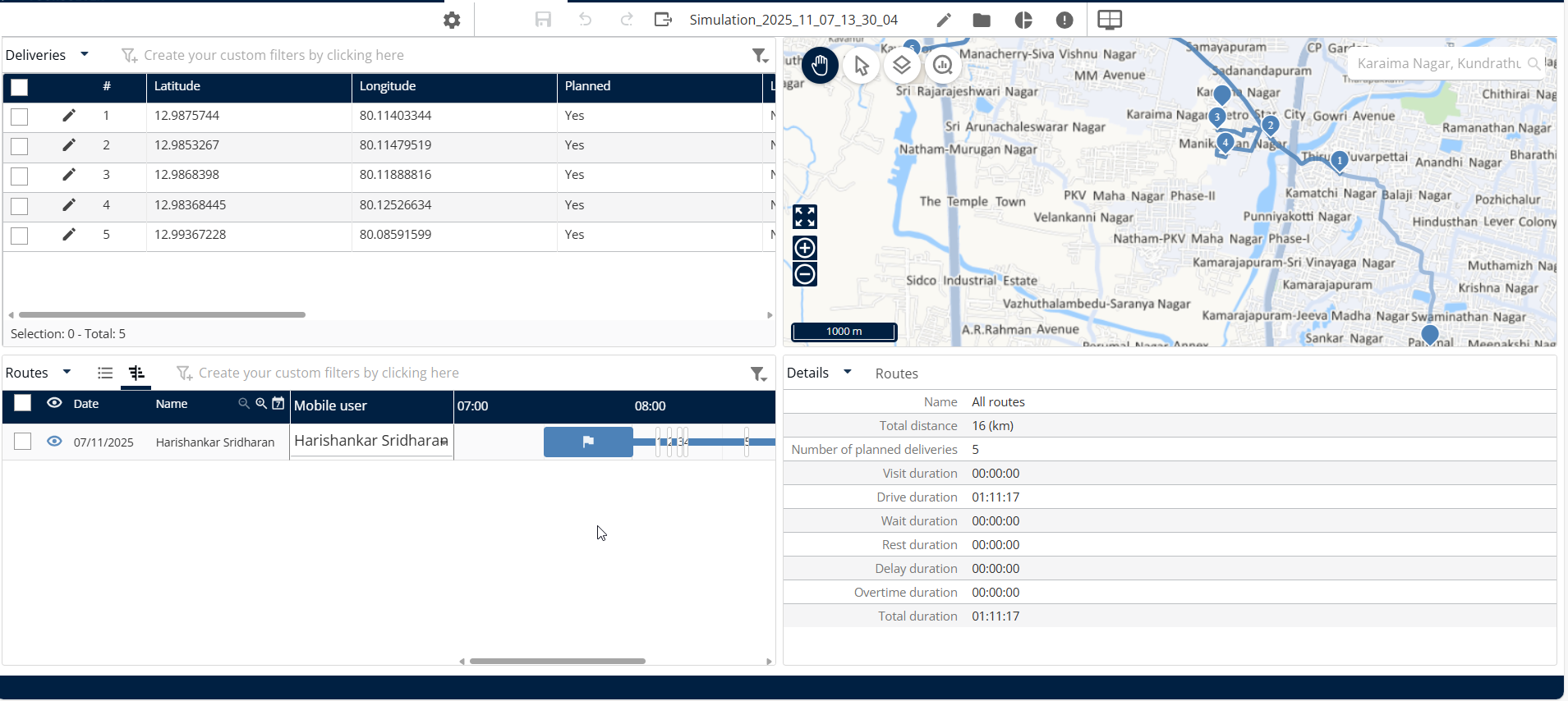
**Review Results:** You will see the optimization result summary.
3. Click on **Display the Simulation**
4. Deliveries have been optimized successfully.
#### Adjusting the Planning Period (Number of Days)
If you need to change how many days the system should plan routes for, you can configure this setting within **My Deliverers**.
1. Go to **My Deliverers**
2. Locate the resource associated with the delivery.
3. Click on **Planning**
3. **Edit Days:** Change the value to the new number of days you wish to use for planning.
4. Click on **Save**
## 5. Productivity Tips
* ⏳ **Tip: Be Patient with Large Jobs:** If you have many deliveries that need optimization, the process may take longer than expected. This is normal because the system is performing complex calculations.
* ✅ **Tip: Check Results Early:** You don't always have to wait for the entire process to finish. If you need a preliminary result quickly, you can click **Stop and see the result** at any time during the calculation.
* 🎉 **Success Confirmation:** Once the system confirms that "The deliveries have been optimized successfully," you know your new routes are ready to implement.
---
# Agent Instructions
This documentation is published with GitBook. GitBook is the documentation platform designed so that both humans and AI agents can read, navigate, and reason over technical content effectively. Learn more at gitbook.com.
## Querying This Documentation
If you need additional information that is not directly available in this page, you can query the documentation dynamically by asking a question.
Perform an HTTP GET request on the current page URL with the `ask` query parameter, and the optional `goal` query parameter:
```
GET https://nomadia-docs.gitbook.io/products/operations-and-route-management/optimize-your-deliveries.md?ask=&goal=
```
`ask` is the immediate question: it should be specific, self-contained, and written in natural language.
`goal` is optional and describes the broader end goal you are ultimately trying to accomplish on behalf of the user. GitBook uses it to tailor the answer towards what is most useful for that goal.
The response will contain a direct answer to the question and relevant excerpts and sources from the documentation.
Use this mechanism when the answer is not explicitly present in the current page, you need clarification or additional context, or you want to retrieve related documentation sections.