> For the complete documentation index, see [llms.txt](https://nomadia-docs.gitbook.io/products/llms.txt). Markdown versions of documentation pages are available by appending `.md` to page URLs; this page is available as [Markdown](https://nomadia-docs.gitbook.io/products/operations-and-route-management/share-a-tour-with-the-mobile-app.md).
# Share a Tour with the Mobile App
## 1. Introduction
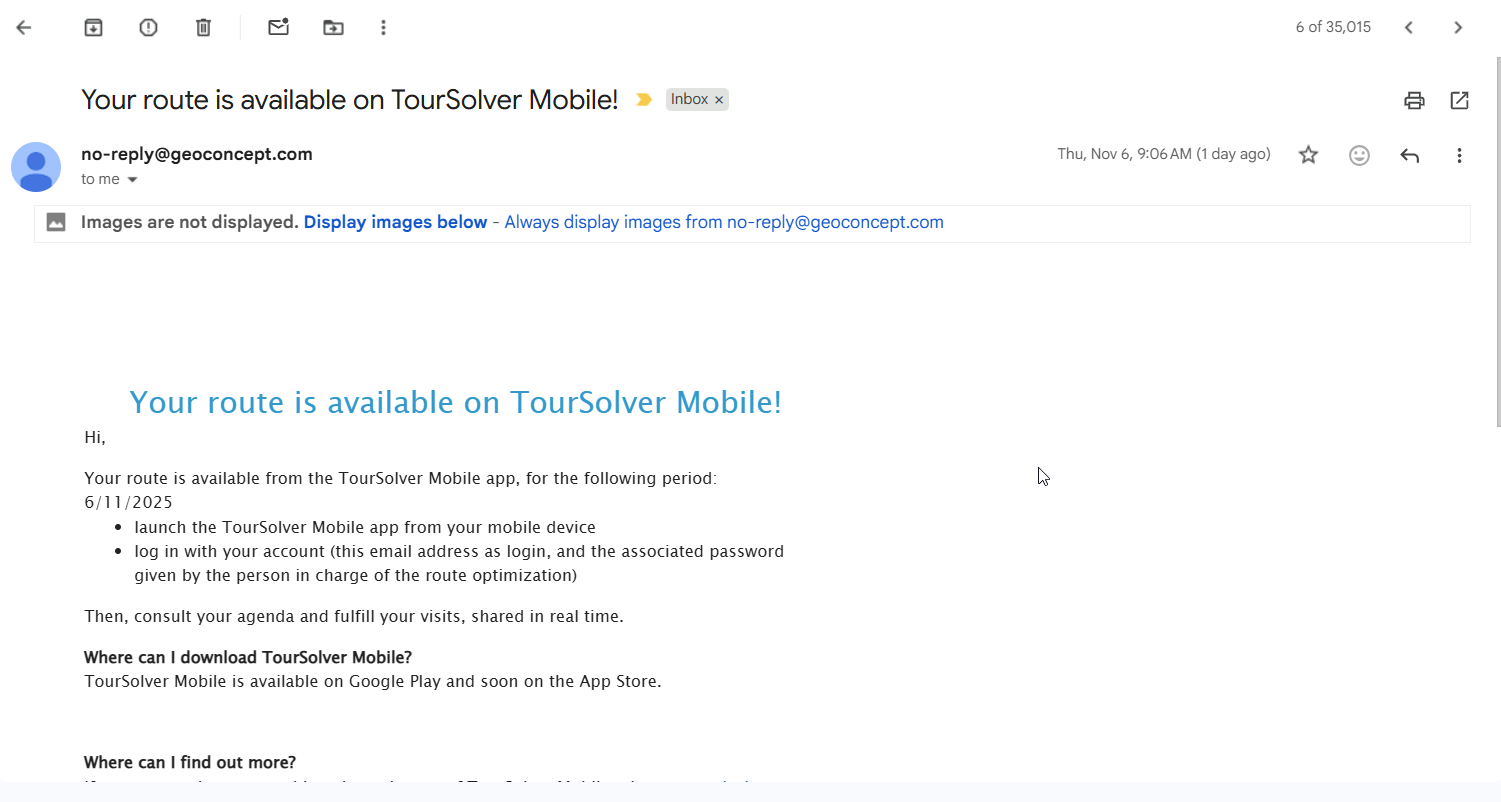
This guide walks you through the process of exporting a planned route to the mobile application used by your field team. This process ensures mobile users receive an email or SMS notification containing the shared tour and its associated deliveries.
## 2. Initial Configuration
To successfully share a tour, you must first access the optimization section and select a completed route.
| Account Type | Notification Sent | Content Sent |
| ---------------------- | ------------------ | --------------------------------------------------------------------------- |
| **Trial Version** | SMS notification | Link to download the mobile application |
| **Subscribed Version** | Notification Email | Notification to all selected mobile app users that the tour has been shared |
## 3. Feature Explanations with Benefits
The **Share with the Mobile App** feature is crucial for connecting your planning efforts with real-world execution.
* **Seamless Route Transfer:** Easily transfer complex, optimized routes (tours) directly to the mobile device where they are needed.
* **Date-Specific Sharing:** You can control the exact date range for which the tour is active and accessible on the mobile app. Sharing a tour for a specific date range (e.g., 1 day duration) confirms exactly which deliveries should be performed on the selected date(s).
* **Confirmation Feedback:** The system provides clear feedback regarding how many deliveries are being shared and how many notifications are being sent to mobile users.
## 4. Understanding Notifications
After you share the tour, the system determines how notifications are delivered depending on your account settings.
## 5. Sharing a Tour
Follow these detailed steps to successfully share your optimized route with your mobile users.
### Exporting and Sharing an Optimized Tour
1. Click on **Optimization**
2. Choose the **desired route** from the list
3. Click on **Export** and click on **Share with the Mobile App**
4. **Set the Start Date (From Date):** Enter the start date from which you want the tour to be shared.
5. Choose a **Desired starting date**
6. **Set the End Date (To Date):** Choose a "**to date**".
**Note**: The standard duration will be 1 day, but you can adjust the "to date" if necessary for creating multi-day routes.\
Date Selection interface showing From Date, To Date, and Duration (1 day)
7. **Review the Notification (Trial/Subscribed):** Read the confirmation notification displayed based on whether you are using a trial or subscribed version.
8. Click on **Send**
**Expected outcome**: Final Confirmation Pop-up showing details of deliveries shared and emails sent
## 6. Productivity Tip
* **Tip: Verify Delivery Counts:** Always pay close attention to the final notification that appears when you click **send.** This message confirms exactly how many deliveries are included in the tour you are sharing and how many emails are being sent to your mobile users.
---
# Agent Instructions
This documentation is published with GitBook. GitBook is the documentation platform designed so that both humans and AI agents can read, navigate, and reason over technical content effectively. Learn more at gitbook.com.
## Querying This Documentation
If you need additional information that is not directly available in this page, you can query the documentation dynamically by asking a question.
Perform an HTTP GET request on the current page URL with the `ask` query parameter, and the optional `goal` query parameter:
```
GET https://nomadia-docs.gitbook.io/products/operations-and-route-management/share-a-tour-with-the-mobile-app.md?ask=&goal=
```
`ask` is the immediate question: it should be specific, self-contained, and written in natural language.
`goal` is optional and describes the broader end goal you are ultimately trying to accomplish on behalf of the user. GitBook uses it to tailor the answer towards what is most useful for that goal.
The response will contain a direct answer to the question and relevant excerpts and sources from the documentation.
Use this mechanism when the answer is not explicitly present in the current page, you need clarification or additional context, or you want to retrieve related documentation sections.