> For the complete documentation index, see [llms.txt](https://nomadia-docs.gitbook.io/products/llms.txt). Markdown versions of documentation pages are available by appending `.md` to page URLs; this page is available as [Markdown](https://nomadia-docs.gitbook.io/products/customer-communication/visit-cancellation.md).
# Visit Cancellation
## 1. Introduction
This process enables you to mark a visit as cancelled while simultaneously triggering an action that prompts the end customer to select a new date and time for rescheduling.
## 2. Initial Configuration
Before processing a cancellation, you must ensure that communication channels are active so the customer receives the rescheduling link.
1. **Access the Cancellation Settings:** Click the **visit cancellation** option.
2. **Enable Outgoing Messages:** Ensure both outgoing communication types are turned on:
* **Outgoing emails**
* **Outgoing SMS**
3. **Set the Subject (Emails and SMS):** Mention the specific **subject** you want the customer to see.
***
## 3. Feature Explanations and Benefits
This feature streamlines communication and logistics when a delivery attempt fails due to customer unavailability.
| Feature | Description |
| ---------------------------- | ------------------------------------------------------------------------------------------------------------------------------------- |
| **ETA Link** | A link containing the estimated time of arrival (ETA) is automatically created and sent once the delivery completes. |
| **Email Subject Editing** | You can enter and customize the **email subject** so customers immediately know the purpose of the message. |
| **Message Body Editing** | You can freely **edit the message** that will be sent to your customers, allowing for personalized language and important details |
| **Personalization Tags ($)** | Entering the **dollar symbol** ($) reveals options that you can insert and edit directly into the body of the email, saving you time. |
| **Preview Window** | Before saving, you can see the **preview** of the exact message that will be sent, ensuring it looks professional and accurate. |
| **Live Location Tracking** | The link allows the customer to track the live location of the delivery (or deliverer). |
| **Outgoing Email** | Option to enable sending the ETA link via email. |
| **Outgoing SMS** | Option to enable sending the ETA link via text message. |
💡 **Tip:** The body of the email automatically includes the **reason for cancellation** and the **rescheduling date** information.
**Insert Personalized Information (Optional)** To include dynamic information (like a customer's name or specific appointment details), enter the **dollar symbol** ($). This will show options you can use to edit the body of the email.
💡 **Tip:** Using personalization tags makes the message feel more direct and professional.

#### Managing Rescheduled Appointments
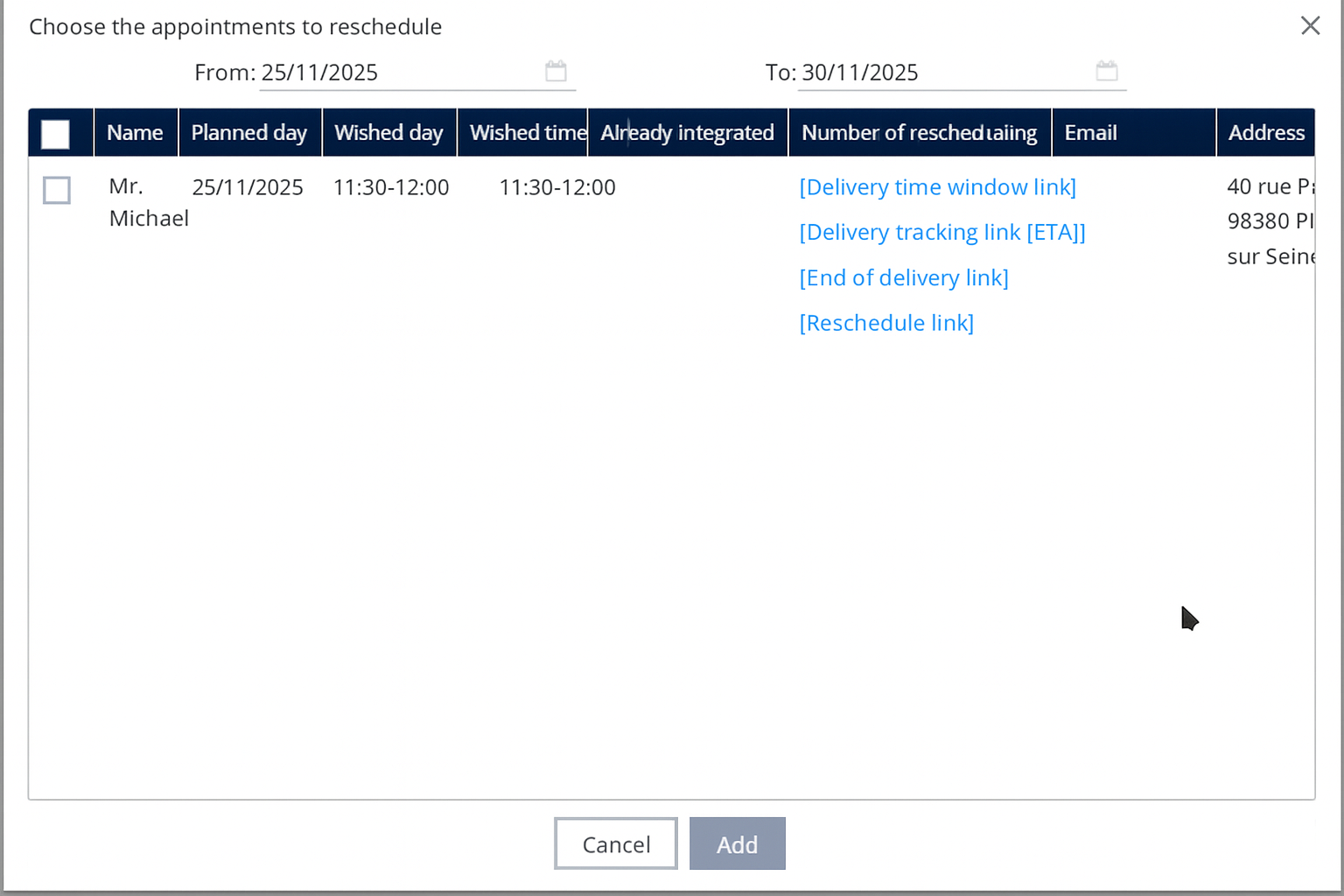
After a visit is canceled, the deliverer must pull the appointment back into the schedule once a new date is selected.
**Finding the Data**
1. **Access Fulfillment:** Go to the **fulfillment tab**.
2. **View Canceled List:** Click on **to be rescheduled**.
3. **Review Data:** You can **see the rescheduled data here**.
**Adding the Appointment Back to the Schedule**
1. **Access Deliverer Tools:** The deliverer should click on **my deliveries**.
2. **Select Appointments:** Click on **add appointments to reschedule**.
3. **List and Add:** **List the data here** and click **add**.
**Expected Outcome:** The rescheduled visits **will be added successfully to the next simulation/optimization**.
## 5. Productivity Tips
* **Always Enable Both:** For maximum customer reach, ensure you **enable the outgoing emails and the outgoing SMS** when setting up the cancellation. This feature is available across multiple channels, ensuring customers can access it even if one method is missed.
* **Use the Preview Feature:** Before clicking **save**, always utilize the feature to **see the preview of the email**. This confirms the cancellation reason and rescheduling link are displayed correctly, preventing communication errors.
* **Track Rescheduled Items:** Regularly check the **fulfillment tab** under **to be rescheduled**. This ensures no canceled visits are missed and keeps your logistics workflow current.
---
# Agent Instructions
This documentation is published with GitBook. GitBook is the documentation platform designed so that both humans and AI agents can read, navigate, and reason over technical content effectively. Learn more at gitbook.com.
## Querying This Documentation
If you need additional information that is not directly available in this page, you can query the documentation dynamically by asking a question.
Perform an HTTP GET request on the current page URL with the `ask` query parameter, and the optional `goal` query parameter:
```
GET https://nomadia-docs.gitbook.io/products/customer-communication/visit-cancellation.md?ask=&goal=
```
`ask` is the immediate question: it should be specific, self-contained, and written in natural language.
`goal` is optional and describes the broader end goal you are ultimately trying to accomplish on behalf of the user. GitBook uses it to tailor the answer towards what is most useful for that goal.
The response will contain a direct answer to the question and relevant excerpts and sources from the documentation.
Use this mechanism when the answer is not explicitly present in the current page, you need clarification or additional context, or you want to retrieve related documentation sections.
.png?alt=media&token=81d9a989-4a7f-44e4-b009-ef3e7b883df5)